Runs
Runs in the sidebar opens the Executions screen (/workflows/runs), subtitled Monitor and manage your workflow runs. A run (execution) is one execution of one workflow version.
The Executions list
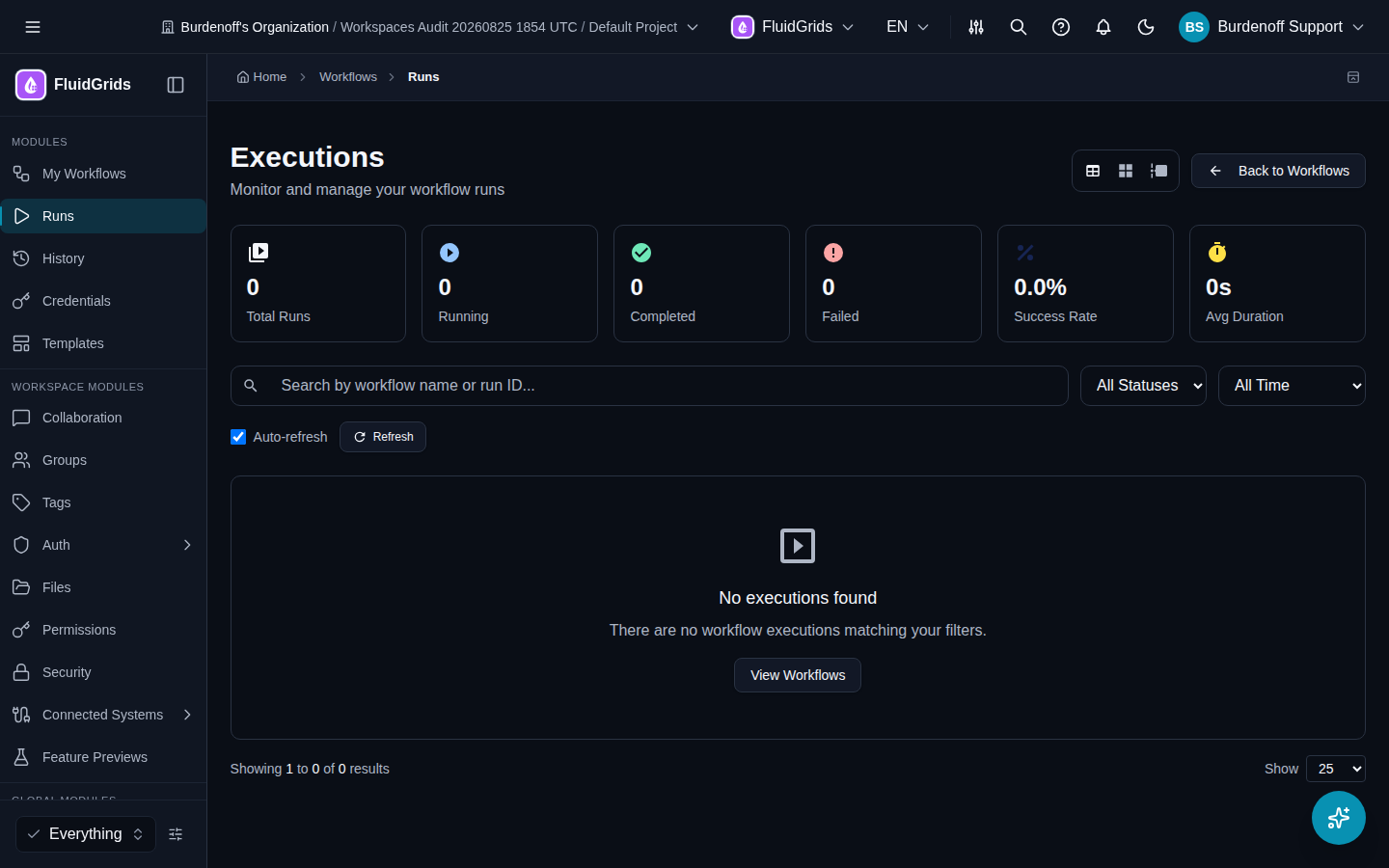
Stats across the top: Total Runs, Completed, Failed, Running, Success Rate, Avg Duration.
Filters: search by workflow name or run ID, a workflow picker (All Workflows), a status filter, and a date range (Today, Yesterday, Last 7 / 30 / 90 Days, All Time, Custom Range). Auto-refresh keeps the list live; Refresh reloads once; Clear Filters resets everything.
Three views, switchable from the toolbar:
- Table View — columns Run ID, Workflow, Status, Started, Duration, Progress, Trigger Node, Node Stats (completed / failed / skipped). Rows can be selected for bulk Pause, Resume, or Cancel.
- Card View — one card per run with a progress bar and Pause / Cancel.
- Timeline View — runs on a time axis, grouped by workflow.
Row actions: View Details, Pause, Resume, Cancel, Retry.
Statuses
| Status | Meaning |
|---|---|
| Pending | Queued; a worker has not picked it up yet. |
| Running | Executing. |
| Waiting | Paused by you, or parked at a Wait node until its time or an external resume call. |
| Completed | Every reachable node finished. |
| Failed | A node failed and no error handling caught it. The failing node is named in the error. |
| Cancelled | Stopped by Cancel. |
| Terminated | Force-stopped by Terminate. Cannot be resumed. |
The run detail view
Click a run to open it. The header shows Duration, Nodes, Progress, and Trigger. Execution Details lists Run ID, Workflow, Workflow Key, Version, Triggered By, Created, Started, Completed, and, for a sub-workflow, the Parent Run.
Actions in the header: Refresh, Auto-refresh, Pause, Resume, Cancel, and Terminate. Terminate asks for confirmation — This will immediately stop the running workflow and cannot be resumed.
Four tabs:
| Tab | Contents |
|---|---|
| Timeline | Every node in execution order, starting with the trigger, with status, attempt number, and duration. Expand a node for its Input and Output, the error if it failed, and a Retry Node button. A Sub-workflow badge links to the child run. |
| Logs | The live run log (below). |
| Input Data | The trigger payload the run started with. |
| Context | Execution context: workspace, actor, and trigger metadata. |
Retrying
Retry Node re-executes just the failed node with its original inputs and continues from there — you do not restart the whole run. Retry on the list does the same for the run's failed node. Fix the cause first (an expired connection, a bad URL, a malformed expression) or the retry will fail the same way.
The run log
The Logs tab is a live console in the style of a CI job log. It shows Streaming while the run is in progress and Polling when it has finished and the tail is being fetched. Controls: Follow (auto-scroll), Wrap, Timestamps, Raw, a minimum log level (and above), and a search box (matching count). Each line can be linked directly with Copy link to this line.
Output printed by your own Code nodes and the message from Log nodes appear here. If a run produces more log lines than its limit, later lines are dropped and a notice explains: reduce logging inside loops or split the workflow into sub-workflows.
Pause, resume, cancel, terminate
| Action | When to use it |
|---|---|
| Pause | Hold a running workflow between nodes. Resume later. |
| Resume | Continue a paused or waiting run. A run parked at a Wait node can also be resumed by calling the resume webhook (see the API Reference). |
| Cancel | Stop the run cleanly. Nodes already completed keep their state. |
| Terminate | Force-stop a run that will not cancel. Requires the admin permission. |
Runs from the builder
Run in the builder starts an execution of the version on the canvas and streams it into the builder's Logs panel. It appears in the Executions list like any other run, triggered by the manual trigger.
Retention
Run history and logs are kept for the period your plan states (see Plans and Quotas). Export through the API or SDKs if you need them longer.
Next steps
- History — which version ran
- Troubleshooting — reading a failed run