Roles and Permissions
Access in FluidGrids is role-based and enforced at the API gateway on every request. Roles are assigned per workspace under Permissions in the Workspace Modules group. FluidGrids ships six product roles; workspace owners and admins have everything by default.
The six FluidGrids roles
| Role | What it is for | Default home |
|---|---|---|
| FluidGrids Automation Owner | Full control of FluidGrids in the workspace, including the connector registry, execution usage, and automation settings. | Dashboard |
| FluidGrids Automation Lead | Approves, activates, and retires workflow versions, arms triggers and schedules, and governs day-to-day automation change. | Dashboard |
| FluidGrids Workflow Designer | Builds workflows on the canvas, configures nodes and triggers, and test-runs drafts, without deleting published automations. | My Workflows |
| FluidGrids Integration Engineer | Curates the connector catalog, registers custom node endpoints and operations, and works the submitted node-package queue. | Credentials |
| FluidGrids Run Operator | Triages failed runs, retries nodes and webhook deliveries, cancels runaway executions, and pauses schedules. | Runs |
| FluidGrids Automation Auditor | Reviews workflow designs, trigger configuration, and execution history as read-only evidence, changing nothing. | History |
A user with several roles gets the most privileged view.
What each role sees
The sidebar is filtered in two layers:
- Permission filtering hides items the role cannot use at all. My Workflows needs
workflow:read; Runs and History needworkflow-run:read. There is no toggle for these. - Persona defaults decide which of the remaining items are prominent. Everything else is folded behind N more…. The selector at the bottom of the sidebar (Everything) switches views and the customise icon beside it pins items.
| Role | Prominent by default |
|---|---|
| Automation Owner | All five FluidGrids items plus Collaboration, Groups, Tags, Auth, Files, Permissions, Security, Connected Systems, Feature Previews, Administration, Billing, Communication |
| Automation Lead | All five FluidGrids items plus Collaboration, Tags, Connected Systems, Communication |
| Workflow Designer | All five FluidGrids items plus Connected Systems |
| Integration Engineer | Credentials, My Workflows, Runs, Connected Systems |
| Run Operator | Runs, History |
| Automation Auditor | My Workflows, History |
Search, Security Settings, Notifications, and Support are visible to every role.
Permission messages you may see
| Message | Meaning |
|---|---|
| You don't have permission to create workflows (tooltip on Create Workflow) | Your role lacks workflow:create. Ask an Automation Owner or workspace admin. |
| You don't have permission to save workflows | Your role lacks workflow:update. |
| You don't have permission to install nodes | Installing store nodes is reserved for roles with node-registry rights (Owner, Integration Engineer). |
| You don't have permission to do that. (toast) | A request on the page was denied by the gateway. If it appears on a screen you can otherwise use, one widget on that screen needs a permission your role lacks; the rest of the screen still works. |
| Access Denied on Integrations Settings | Integrations settings are admin-only. |
Assigning roles
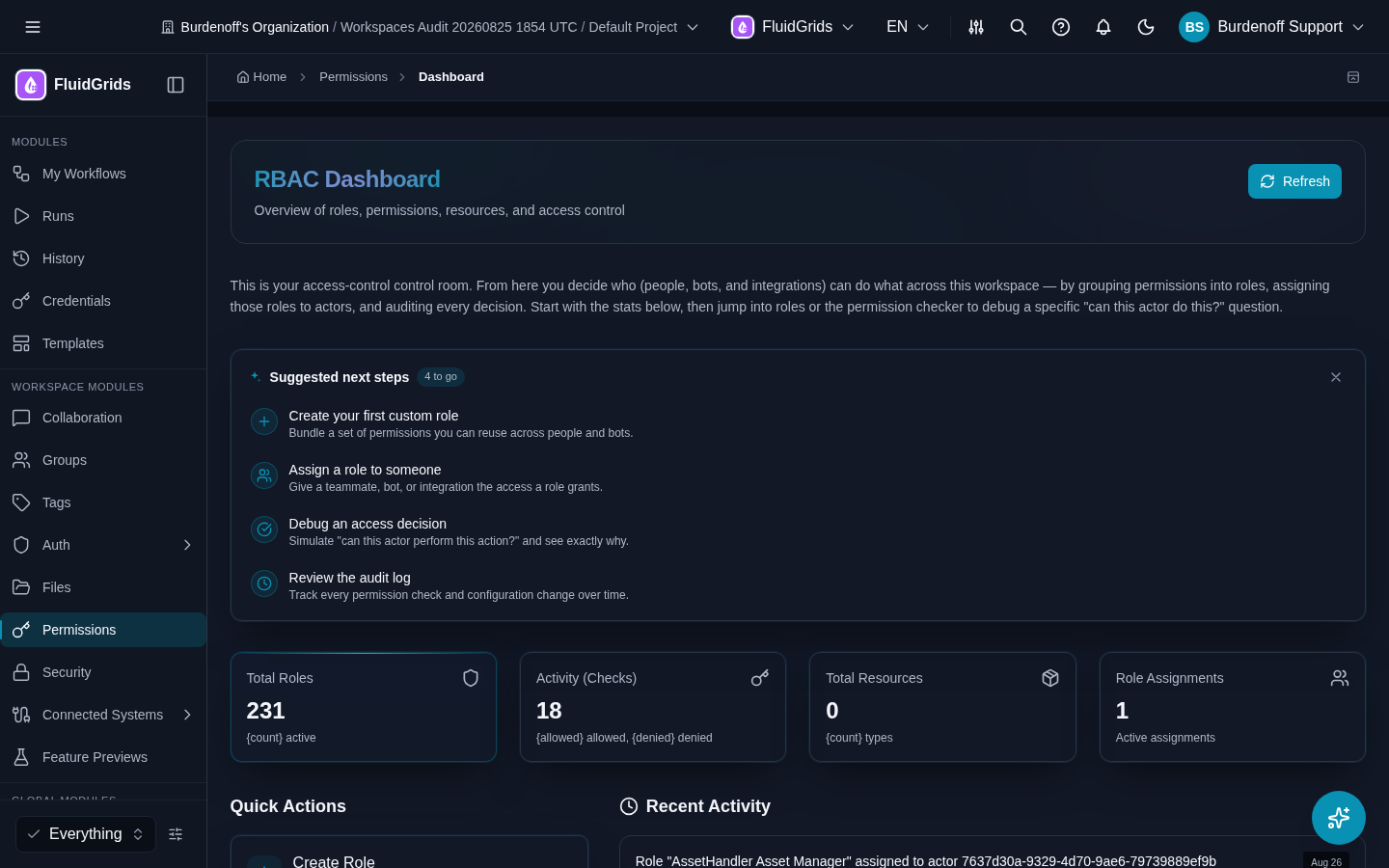
- Open Permissions in the sidebar.
- Pick the member and add one or more of the FluidGrids roles.
- Changes apply on the member's next request; they may need to reload the app.
Workspace membership itself is managed under Administration (Invite People, Workspaces) and Groups.