Credentials
Credentials in the sidebar opens the Connections screen (/integrations/connections), part of the workspace's Integrations module. A connection is a stored, authorised link to one external service — a Google account you granted access to, a Slack workspace you installed the app in, or an API key you pasted. Store nodes use connections at run time; the secrets themselves never appear in a workflow definition.
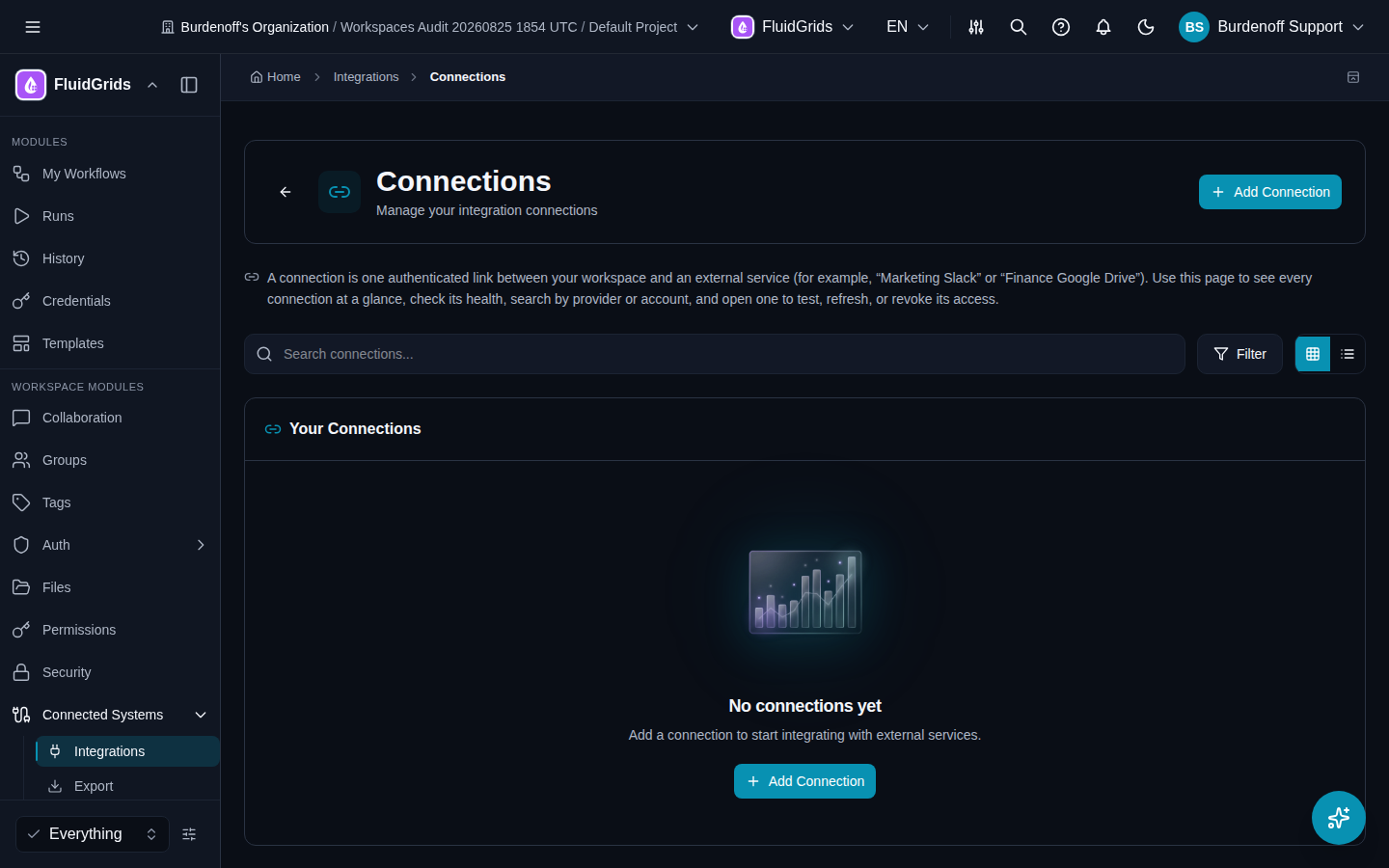
Adding a connection
- Click Add Connection.
- The picker asks you to Select an app or service to connect to. Search or browse the providers.
- Fill in the provider's form and submit. The form depends on how the provider authenticates:
| Provider type | What the form asks for | What happens |
|---|---|---|
| OAuth 2.0 (Airtable, GitHub, Google Calendar / Chat / Docs / Drive / Forms / Gmail / Sheets, HubSpot, Linear, Microsoft Excel / OneDrive / Outlook / Teams, Notion, Salesforce, Slack, …) | A Connection Name, an optional description, and for some providers a set of Permissions (scopes) to request | Connect <Provider> opens the provider's authorisation page in a new window. The form shows Waiting for authorization… until you approve, then Connection Created! |
| API key (Anthropic, OpenAI, SendGrid, Twilio, generic API-key providers) | Connection Name, the API Key, and for some providers a Base URL and custom headers | Saved immediately. |
| Basic Auth / Bearer Token / custom configuration | Connection Name plus username and password, a token, or the provider's own fields | Saved immediately. |
Each form has a Need help filling out these fields? › Open docs link to the provider's own documentation.
The connection dialog has three tabs: Connection (the form above), Details (name and description), and Sharing (who in the workspace may use it).
Using a connection in a node
Open the node in the builder (single-click for the quick panel or double-click for the full editor) and pick the connection in its Connections section. Until you do, the node card shows a Credentials not configured warning and runs of that node fail with an authentication error.
Some nodes need no connection: the built-in nodes, and the BigConsole DataSink node, which uses the workspace's BigConsole app connection automatically.
Managing a connection
Open a connection from the list to see its Provider, Account, Description, Health Check, Last Used, Created, and any Error. Actions:
| Action | What it does |
|---|---|
| Test Connection | Makes a live call to confirm the credentials still work. |
| Refresh Token | Renews an OAuth access token. Use it when requests start failing with an authentication error. |
| Revoke | Disconnects the external service; the connection stays listed as revoked. |
| Delete | Removes the connection. Cannot be undone; nodes that used it will need a new one. |
Security
- Secrets are encrypted at rest and scoped to the workspace.
- They are never returned by the API or shown in the UI after creation.
- A run can only use connections that belong to the workspace that owns the workflow.
- Sharing a workflow (link or embed) never includes connections.
The wider Integrations module
Connections are one screen of the Integrations module, which also appears under Connected Systems › Integrations in the sidebar. Its overview page shows Active Connections, Installed Providers, Pending Auth, and Errors, plus Recent Connections; the Provider Catalog lists every provider by category and authentication type. See Connected Systems.
Next steps
- Understanding Nodes — which nodes need which providers
- Troubleshooting — authentication errors on runs