My Workflows
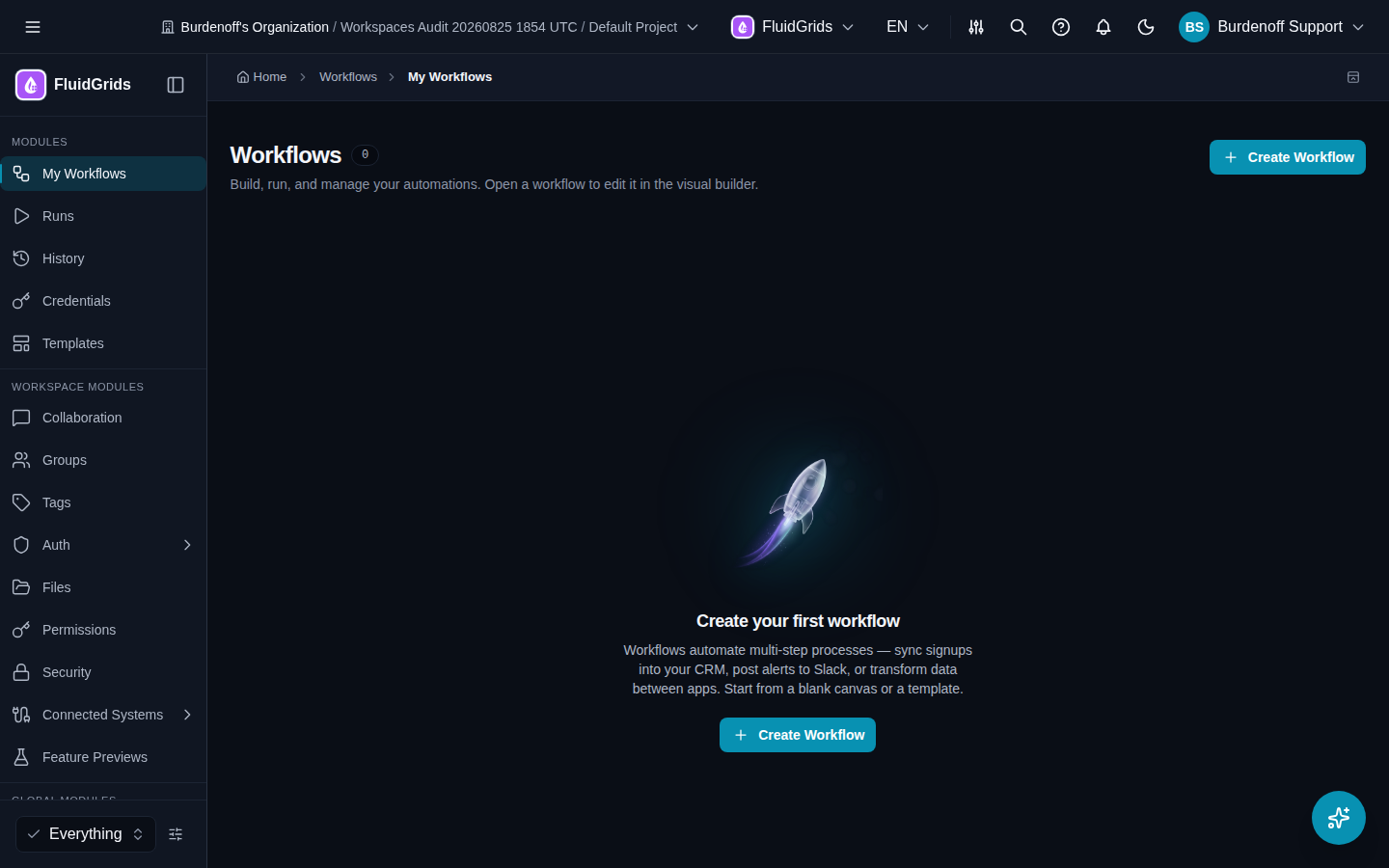
My Workflows (/workflows/list) is your workflow library. The page title reads Workflows, with the subtitle Build, run, and manage your automations. Open a workflow to edit it in the visual builder.
What each card shows
Each workflow is a card with its name, description (or No description), status badge, tags, the number of versions, and when it was last updated. Clicking the card opens the latest version in the Visual Builder. The card menu offers:
| Action | What it does |
|---|---|
| Edit workflow | Opens the builder. |
| Duplicate workflow | Creates a copy as a new Draft workflow with its own key. Counts against your workflow quota. |
| Share workflow | Opens the Share dialog (link or embed code). |
| Delete workflow | Deletes the workflow and all of its versions. This cannot be undone. |
Statuses
| Status | Meaning |
|---|---|
| Draft | Saved, but no version has been activated. Manual runs work; webhooks and schedules do not. |
| Active | A version is Active. Its automatic triggers (webhook, schedule, form, error) are armed. |
| Deprecated | Superseded; kept for history and can be restored as a new draft. |
| Archived | Retired from the working set. |
The status filter (All, Active, Draft, Archived, Deprecated) and the search box narrow the list. Clear filters resets both. Tags assigned in the builder appear as chips on the card and can be used as a filter.
Creating a workflow
Click Create Workflow. The builder opens with an empty canvas and the Node Store; add a trigger from its Triggers category to begin. If the button is disabled, your role does not include workflow:create — the tooltip says You don't have permission to create workflows.
If your plan's workflow limit is reached you will see Workflow Limit Reached with a View Billing button. See Plans and Quotas.
Other ways to create a workflow:
- Use Template on the Templates page.
- Ask the AI Assistant to build one from a description.
- Copy to My FluidGrids Builder on a workflow someone shared with you.
Sharing a workflow
Share opens a dialog with two tabs:
- Share Link — a public read-only link at
/shared/<id>. Anyone with the link sees the node graph and a Copy to My FluidGrids Builder button, which copies the workflow into a new draft in their own workspace after they sign in. Your original is untouched. - Embed — an
<iframe>snippet with editable Width and Height that renders the workflow read-only inside another web page.
Sharing exposes the workflow's structure and node configuration; connections and secrets are never included.
Tags
Tags are assigned in the builder from the tag combobox next to the workflow name (Select tags, Create new tag, Edit Tags). They come from the workspace-wide Tags module, so the same tag can be used across products.
Empty state
A new workspace shows Create your first workflow with a short description of what workflows do. Both Create Workflow and Templates are one click away.