AI Assistant
FluidGrids AI is the floating assistant button in the bottom corner of every screen once you are signed in. It has two modes, switchable from the tabs at the top of the panel, and accepts typed or spoken input (the microphone button).
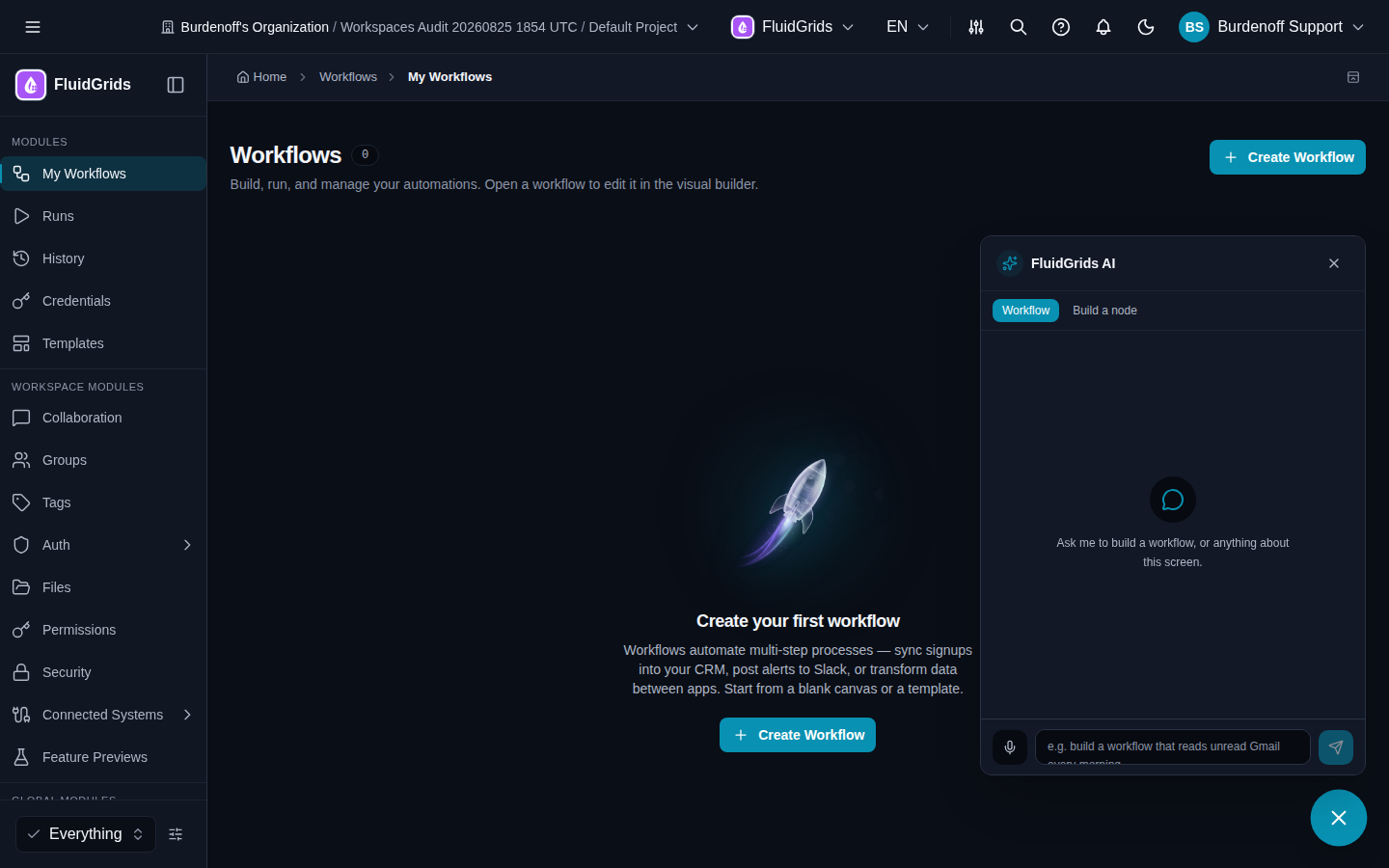
Workflow mode
The default mode. Its prompt reads Ask me to build a workflow, or anything about this screen.
- Build a workflow. Describe what you want — for example build a workflow that reads unread Gmail every morning and posts a summary to Slack. The assistant drafts a complete workflow (trigger, nodes, wiring, and node configuration) and creates it in your workspace as a new draft. Open it in the builder to review. If the draft uses store nodes you have not installed, the builder shows an Install button on those nodes.
- Ask about the current screen. The assistant knows which page you are on and, in the builder, which workflow is open, so questions like why did the last run fail? or what does the Merge node's Multiplex mode do? are answered in context.
- Take actions. The assistant can call the same API the app uses, so it can list your workflows, look up a run, or trigger a workflow when asked.
A generated workflow is a draft like any other: it is not Active until you activate a version, and it needs connections for any store nodes it uses.
Build a node mode
Titled Build a Node: Describe an integration and I'll scaffold a FluidGrids node, then give you a downloadable zip. Tell it what service and operations you need — for example build a node that sends a message to a Discord channel — and it produces a complete node package (manifest, GraphQL schema, resolvers, handlers, container files) as a zip you can download, test locally, and submit. See Custom Nodes for what is in the package and how to get it into a workspace.
Availability
- The assistant appears on every screen except the sign-in pages.
- Assistant usage counts against the AI allowance of your plan (Billing › Usage and Quota).
- Both modes are available in production and alpha.
Tips
- Name the services you want to use; the assistant maps them to store nodes.
- Say how the workflow should start ("every morning at 8", "when a webhook arrives") so it picks the right trigger.
- Review connections after generation — the assistant cannot authorise a Google or Slack account for you.